

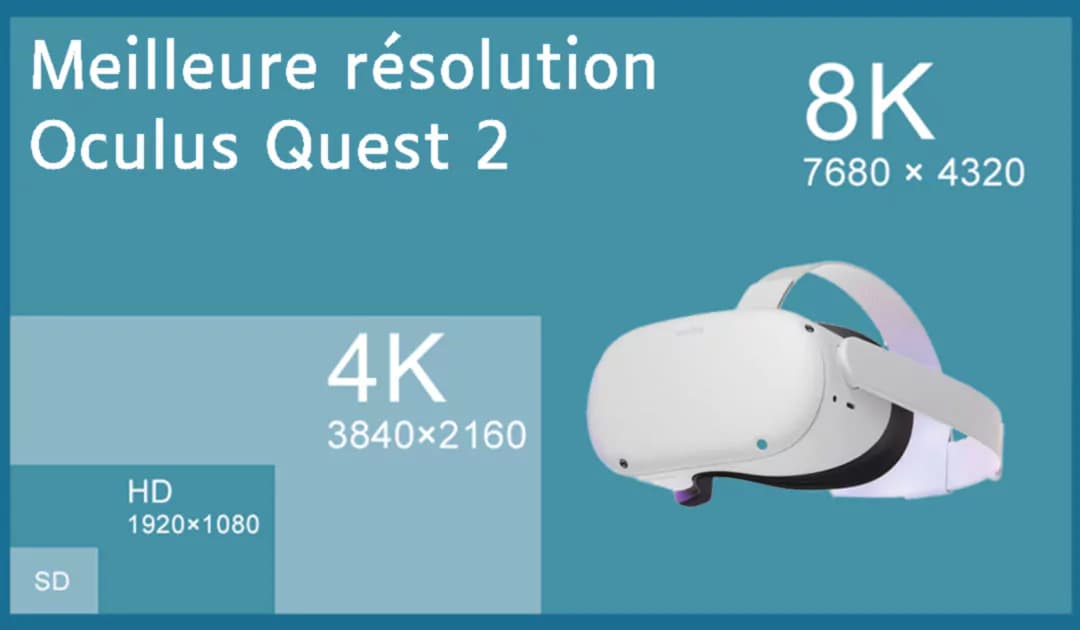
Introduction
Are you a videographer wondering what resolution to use for your 360° videos on the Meta Quest 2 and easybox360? This guide provides the key recommendations to achieve the best possible rendering.
Recommended resolutions
Monoscopic 360° video
Monoscopic video (2D spherical) is the most common format for 360° experiences. The Quest 2 excels in this area.
| Parameter | Recommended | Maximum |
|---|---|---|
| Resolution | 7200 × 3600 | 8192 × 4096 |
| Framerate | 60 FPS | 60 FPS |
| Codec | H.265 (HEVC) | H.265 (HEVC) |
| Bitrate | 80-100 Mbit/s | 100 Mbit/s |
Stereoscopic 360° video (3D)
Stereoscopic video provides depth perception through two distinct images (one for each eye). The Quest 2 handles this demanding format very well.
| Parameter | Recommended / Maximum |
|---|---|
| Resolution | 5760 × 5760 |
| Framerate | 60 FPS |
| Codec | H.265 (HEVC) |
| Format | Top-Bottom or Side-by-Side |
| Bitrate | 100 Mbit/s |
180° Side-by-Side video
The 180° VR format is ideal for front-facing content with a depth effect.
| Parameter | Maximum |
|---|---|
| Resolution | 5760 × 5760 |
| Framerate | 60 FPS |
| Codec | H.265 (HEVC) |
| Bitrate | 100 Mbit/s |
Why choose H.265 on Quest 2?
Unlike the Pico G2 4K, the Meta Quest 2 is optimized for the H.265 (HEVC) codec thanks to its XR2 processor:
- Better compression: smaller files at the same quality level
- Higher resolutions: supports up to 8K
- Optimized hardware decoding: the XR2 decodes H.265 natively
- Smooth 60 FPS: even at high resolutions
Resolution vs Performance
- Better battery life: lower power consumption
- Less overheating: extended comfort for the user
- Smoother playback: stable framerate without drops
- Equivalent experience: the visual difference is often imperceptible
For extended sessions (training, exhibitions), prefer 5K@30FPS over 8K@60FPS.
Recommended export settings
Here is a summary of the optimal settings for exporting your 360° videos on Quest 2:
| Parameter | Value |
|---|---|
| Resolution | 7200 × 3600 (mono) / 5760 × 5760 (stereo) |
| Framerate | 60 FPS |
| Video codec | H.265 (HEVC) |
| Profile | Main 10 |
| Bitrate | 80-100 Mbit/s (VBR recommended) |
| Audio codec | AAC, 48 kHz, stereo or ambisonic |
| Container | MP4 |
Tips to optimize your videos
Take advantage of 60 FPS
The Quest 2 is one of the few standalone headsets capable of handling 60 FPS at high resolution. Make the most of it for smoother motion and better visual comfort.
Spatial audio
The recommended resolution of 7200×3600 leaves enough processing headroom for ambisonic audio. Feel free to incorporate spatial sound to enhance immersion.
Streaming vs local
- Streaming: bitrate is limited (~32 Mbit/s in H.264). Prefer local download for the best quality.
- Local: you can leverage the full potential (100 Mbit/s H.265)
Production workflow
- Shooting: film at the maximum resolution of your 360° camera
- Editing: work in your native resolution
- Export: apply the recommended settings above
- Metadata injection (optional): use the Google Spatial Media Metadata Injector tool so the video is recognized as 360°.Not required for easystory360.
- Test on headset: verify the final rendering on the Quest 2
- Upload to easystory360: integrate your video into your experience