

Introduction
The Easystory360 Ultimate plugin for WordPress lets you easily embed your immersive VR/360 experiences directly into your pages and posts. Compatible with all themes and page builders (Gutenberg, Elementor, Divi...), it provides seamless integration with no technical skills required.
Installing the 360 WordPress Plugin
Installation takes just a few simple steps:
- Download the plugin from the official WordPress directory or our platform
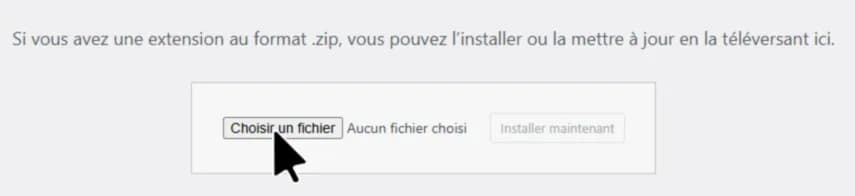
- In your WordPress dashboard, go to Plugins > Add New
- Click Upload Plugin and select the ZIP file
- Click Install Now then Activate
Once activated, you will find a new "Easystory360" menu in your admin sidebar.
Adding a Story with the Code Generator
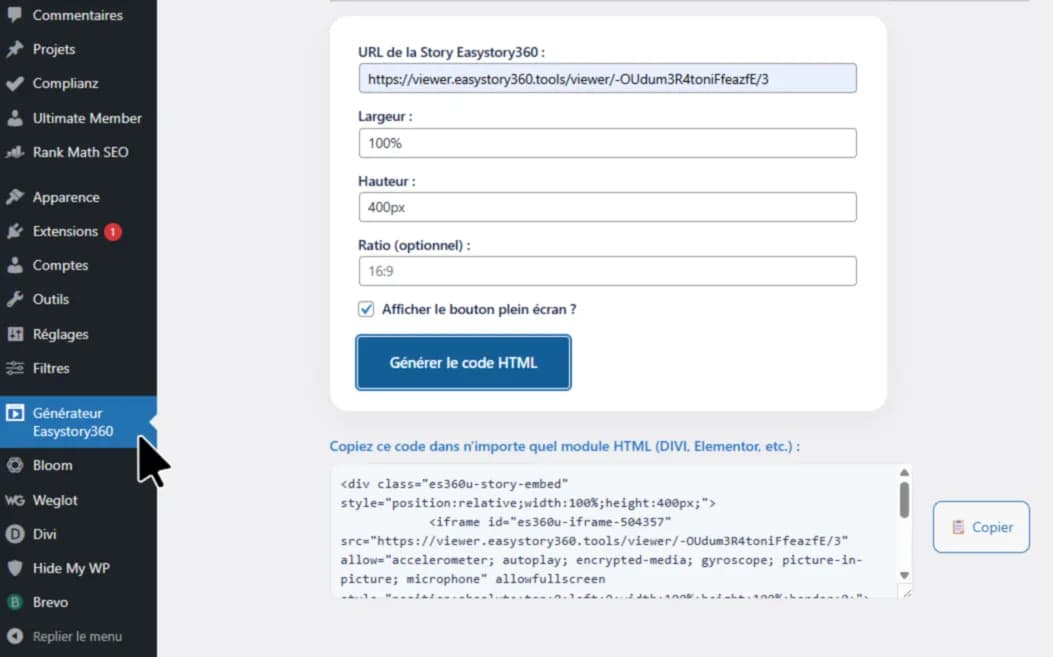
The plugin includes an HTML code generator accessible via Easystory360 > Generator in the admin menu.
How to Use It
- Paste your story URL in the following format:
https://viewer.easystory360.tools/viewer/[ID] - Configure the display options:
- Width: percentage (100%) or pixels (400px)
- Height: fixed value (400px, 60vh)
- Ratio: 16:9, 4:3, or custom
- Fullscreen button: enable/disable
- Click Generate HTML Code
- Copy the generated code
Using the Easystory360 Widget
To embed a story in a widget area (sidebar, footer, etc.), use the dedicated widget:
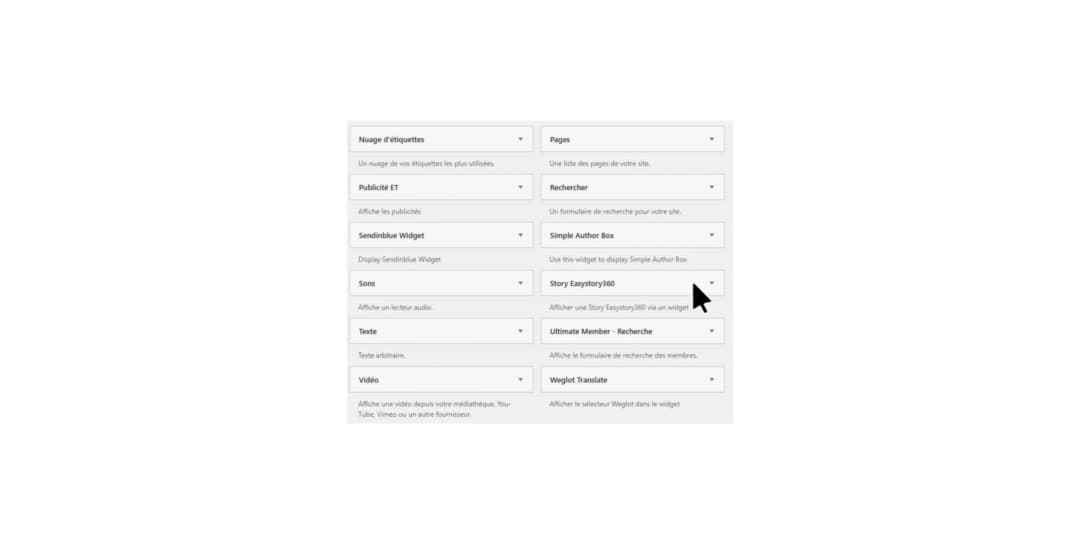
- Go to Appearance > Widgets
- Drag the Easystory360 Story widget to the desired area
- Enter your story URL and display options
- Save
The widget is displayed immediately in the selected area.
Integration with the Classic Editor (TinyMCE)
If you use the WordPress classic editor, a dedicated Easystory360 button appears in the toolbar:
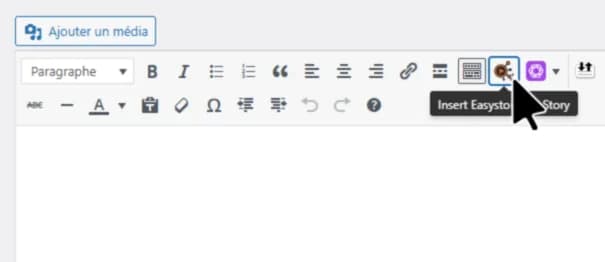
- Click the Easystory360 button in the toolbar
- Enter your story parameters
- Click Insert
The code is automatically added to your content.
Using with DIVI, Elementor, Gutenberg
The generated HTML code works with all popular page builders:
With DIVI
Use a Code or Custom HTML module and paste the generated code.
With Elementor
Add an HTML widget and paste the code into the provided field.
With Gutenberg
Add a Custom HTML block and paste the generated code.
Available Options
Here are the customizable parameters for each integration:
| Option | Description | Examples |
|---|---|---|
| width | Iframe width | 100%, 400px, 60vw |
| height | Iframe height | 400px, 60vh, 500px |
| ratio | Aspect ratio | 16:9, 4:3, 1:1 |
| fullscreen | Fullscreen button | true / false |
Internationalization (FR / EN)
The plugin automatically detects the language configured in WordPress and displays the interface in French or Englishbased on your settings.
Code Example
Here is a complete example of an embed code:
<div class="easystory360-wrapper" style="position:relative;width:100%;max-width:100%;">
  <iframe
    src="https://viewer.easystory360.tools/viewer/YOUR-ID"
    style="width:100%;height:500px;border:none;"
    allowfullscreen
    loading="lazy"
  ></iframe>
  <button class="easystory360-fullscreen" onclick="toggleFullscreen(this)">
    Fullscreen
  </button>
</div>
Best Practices
- Responsive: Use percentage values (100%) for automatic adaptation to all screen sizes
- Performance: The
loading="lazy"attribute is automatically added to optimize loading - Accessibility: Add a descriptive title to your stories for screen readers
- SEO: Accompany your embeds with descriptive text to improve search engine visibility
Support and FAQ
Need help? Check out our full documentation or contact our support team for personalized assistance.
Frequently Asked Questions
Q: Is the plugin compatible with my theme?
A: Yes, the plugin is compatible with all standard WordPress themes. The iframe-based integration ensures universal compatibility.
Q: Can I embed multiple stories on the same page?
A: Absolutely! You can add as many stories as you like on a single page.
Q: Do stories work on mobile?
A: Yes, all stories are responsive and automatically adapt to mobile and tablet screens.