

Introduction
To share 360° content with the easystory360 platform, the essential step is to create a Story. A Story is the container that groups one or more 360° scenes to form a complete immersive experience.
Quick video tutorial
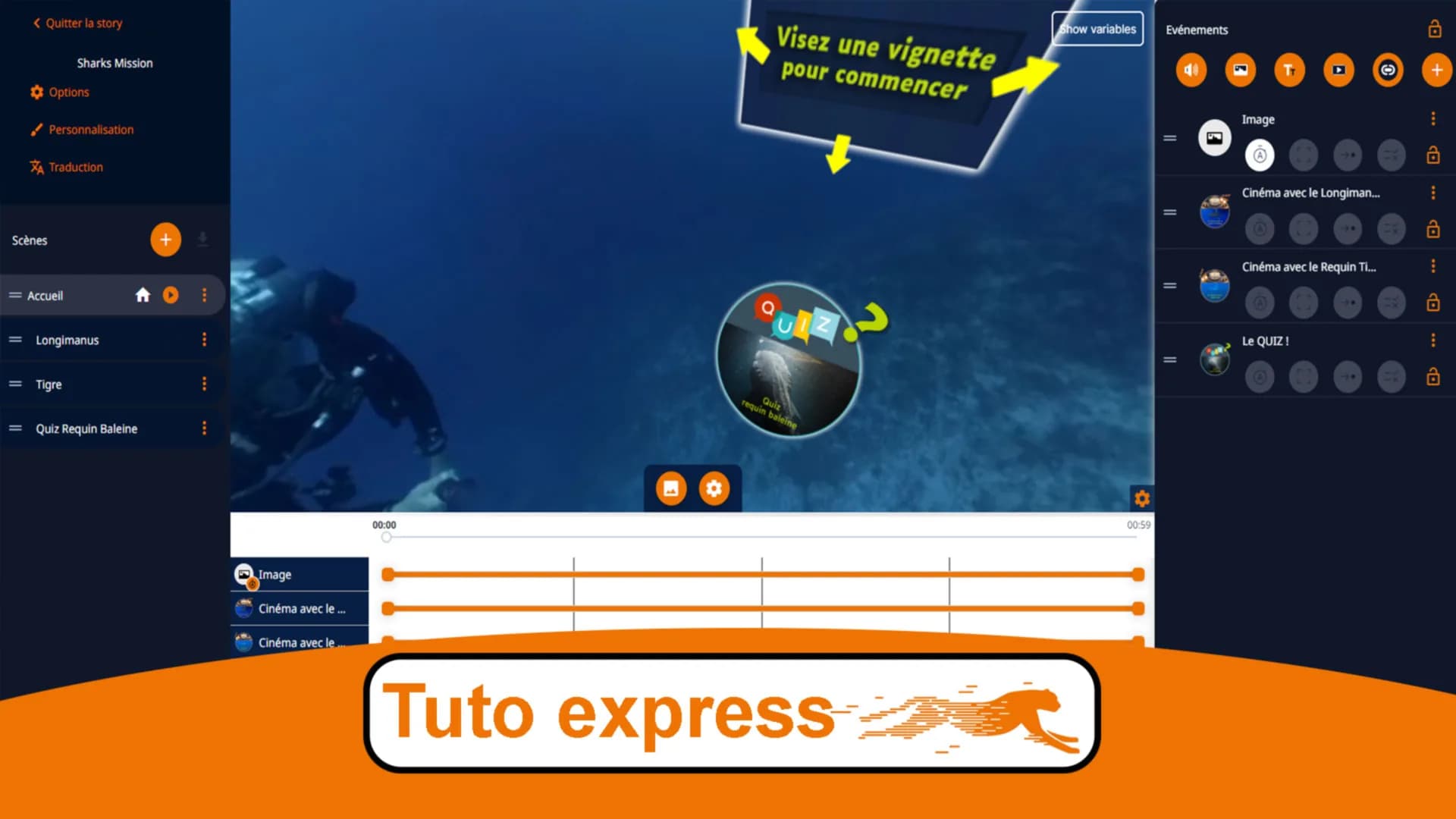
This tutorial of less than one minute shows you how to create your first story and add a scene to it:
What is a Story?
A Story is a project that contains one or more 360° scenes. It is the main element of your immersive experience. You can add:
- Scenes (360° photos or videos)
- Interactive hotspots
- Navigation links between scenes
- Multimedia content (text, images, audio)
What is a Scene?
A Scene represents a 360° viewpoint. It is created from an equirectangular image or video. Each scene can be enhanced with interactive elements.
Create a new Story
- Log in to your easystory360 account
- From the dashboard, click on "New Story"
- Give your story a name
- Add a description (optional but recommended for SEO)
- Click on "Create"
Add a first scene
- In the story editor, click on "Add a scene"
- Select a 360° image or video from your library
- The scene is automatically created with your media
- Give your scene a title
- Set the initial viewpoint (the starting angle)
Configure the scene
For each scene, you can configure:
| Option | Description |
|---|---|
| Title | Name displayed as an overlay |
| Initial viewpoint | Starting angle when the user arrives |
| Thumbnail | Preview image |
| Audio | Background music or narration |
| Duration | For automatic scenes (slideshow) |
Tips for getting started
- Media quality: use high-resolution images (4K minimum recommended) for optimal immersion
- Clear naming: give explicit names to your stories and scenes so you can find them easily
- Organization: group your media by project in the library
- Regular testing: preview your story regularly during creation
Next steps
Now that you have created your first story and scene, you can:
- Create links between your scenes
- Publish and share your story
- Add informational hotspots
Share this article: